The Command Line
introduction for beginners — no experience needed
$ whoami
By the end of today
- Open a terminal without flinching
- Find your way around your own files
- Create, copy, move and delete things
- Read a command and guess what it does
- Get yourself unstuck
Cheatsheet at the end.
Who has opened a terminal before?
What is a terminal?
A place to type what you want,
instead of
clicking it.
a different way to interact with your computer and/or files
It is not a seperate, parallel computer
Everything we do in the terminal can be seen in your filesystem.
Why terminal?
- Precise — "rename these 400 files" is one line
- Repeatable — you can save it and run it again
- Shareable — a command can be pasted in a message; a screen recording of clicking, is not as easy
- AI — your favourite agent uses it to do its work
- Everywhere — servers, phones, fridges, everything
Also, you get to feel like a hacker!
Getting a terminal
| macOS | Cmd+Space, type Terminal, Enter |
| Linux | Ctrl+Alt+T, or search Terminal |
| Windows | One extra step — next slide |
Opens a black-ish window with a blinking cursor
On Windows
Windows ships a different set of commands. Rather than teach two dialects, we install the real ones.
Install Git for
Windows,
then open Git Bash.
It bundles the GNU coreutils — ls,
cp, mv, rm and friends —
so every command we use in this presentation behaves identically to macOS and
Linux.
If Git Bash does not work...
- WSL — a real Linux inside Windows.
wsl --installin PowerShell, then reboot. Heavier, needs admin. - A cloud shell — anything in the browser with a terminal works fine for today.
Otherwise, come talk to me later and we can discuss other options
If you want to practice in a safe environment
Reading the prompt
anna@laptop:~/Documents$
 |      |        |      |
 you    machine  where  your turn
The $ means waiting for you.
Yours will look different. That is fine — every prompt is customisable, and it does not change what the commands do.
Terminal rules
- Nothing happens until you press Enter
- Case matters —
lsis notLS - Spaces matter — they separate the words
- There is no "are you sure?"
Don't be scared, just be aware of what you are doing.
(this is also good life advice)
First contact
- Open the terminal
- Type
whoami, thendate - typos matter —
whoamii
READ THE ERRORS!
Three important questions
- Where am I?
- What is here?
- How do I move?
Three commands to answer these questions...
Where am I?
pwdprint working directory.
"Directory" is just the old word for folder. You will see both.
What is here?
ls          # list what's in this folder
ls -l       # long: size, date, permissions
ls -a       # all: include hidden files
ls -la      # both at once
Words starting with - are options. They change
how a command behaves.
How do I move?
cd Documents    # go into Documents
cd ..           # go up one level
cd ~            # go home
cd -            # go back where I just was
cd # also homechange directory.
Shorthands
~ | your home folder |
. | right here |
.. | one level up |
These work almost everywhere a folder name does, not just with
cd.
You don't need to remember all of this.
Look it up 10 times then you will remember it (maybe).
Two kinds of path
Relative
cd Documents/notesFrom wherever I am now. Like "second door on the left".
Absolute
cd /home/anna/DocumentsFrom the very top. Like a full postal address.
Starting with a / means it is an absolute path.
Getting around
pwd,ls,ls -lacdinto a folder,pwdagaincd ..back out, thencd ~
Try relative and absolute paths
Two keys that will make your life easier
| Tab | finish this word for me |
| Up arrow | the command I just ran |
Tab completes what you are typing (if possible).
It is how you check you typed it right.
Looking inside files
cat notes.txt      # dump the whole file
less notes.txt     # scroll it - press q to quit
head notes.txt     # first 10 lines
tail notes.txt     # last 10 lines
wc -l notes.txt    # how many lines?
q quits less.
Reading things
cata short file, then a very long one- Try with
less— open it, scroll, pressq head notes.txt, thentail notes.txtwc -l notes.txt
Making things
mkdir practice           # make a folder
touch notes.txt          # make an empty file
cp notes.txt backup.txt  # copy
mv notes.txt final.txt   # rename
mv final.txt practice/   # ...or move
mv does both jobs. Renaming is moving, as far as
the computer is concerned.
Removing things
rm notes.txt        # delete a file
rm -r oldfolder     # delete a folder and everything in it
There is no recycle bin.
rm does not ask, does not warn, and cannot be undone.
Read the line before you press Enter.
(sometimes it does ask but don't rely on it. Use -i when in doubt.)
Wildcards
ls *.txt          # every file ending in .txt
cp *.jpg photos/  # copy all the jpegs at once
rm report-*       # everything starting with report-
Check before you delete: run it with ls first,
and see exactly what the star matched.
* stands for "anything".
A sandbox to break
mkdir ~/practiceandcdinto ittouch a.txt b.txt c.txt— watch them appear in the file managercp,mv, thenrmonels *.txtbeforerm *.txt
Play around
One step further
The output of one command
can become the input of the next.
Pipes and files
ls | wc -l            # how many things are in here?
ls -l | head          # just the top of a long listing
ls > filelist.txt     # send the output into a file
| | feed it to the next command |
> | write it into a file (replacing it) |
Pipelines can be read from right to left
ls | wc -l — count the lines, of the listing
Pipelines
ls, thenls | wc -lls > filelist.txt, thencat filelist.txt
Getting unstuck
Ctrl+C | stop whatever is running |
q | quit a full-screen viewer |
clear | tidy the screen |
ls --help | quick reminder of the options |
man ls | the full manual (q to quit) |
Closing the window always works too.
Cheatsheet
pwd | where am I |
ls | what is here |
cd | move |
cat | show a file |
less | scroll a file |
head/tail | peek at the top/bottom |
mkdir | new folder |
touch | new file |
cp | copy |
mv | move or rename |
rm | delete, forever |
man | help |
These are some of the most common but there are a lot more.
This week
- Open the terminal once a day, for anything
- Use
cdandlsinstead of a double-click - Press Tab constantly
- When something annoys you twice, ask whether you can do it with one line
Keep practicing
Resources
| notes.txt | today's handout — everything we covered, in one file |
| explainshell.com | paste any command, see what every part of it does |
| tldr.sh | manual pages, but only the examples |
| linuxcommand.org | a free book that starts from the very beginning |
| missing.csail.mit.edu | MIT's "Missing Semester" — the natural next step |
| overthewire.org | Bandit: a game to practice your terminal skills |
And the one already on your machine: man.
Questions?
$ open
presentations.hackenshaw.com/
These slides, with cheatsheet and link to notes.txt.
$ thanks for coming
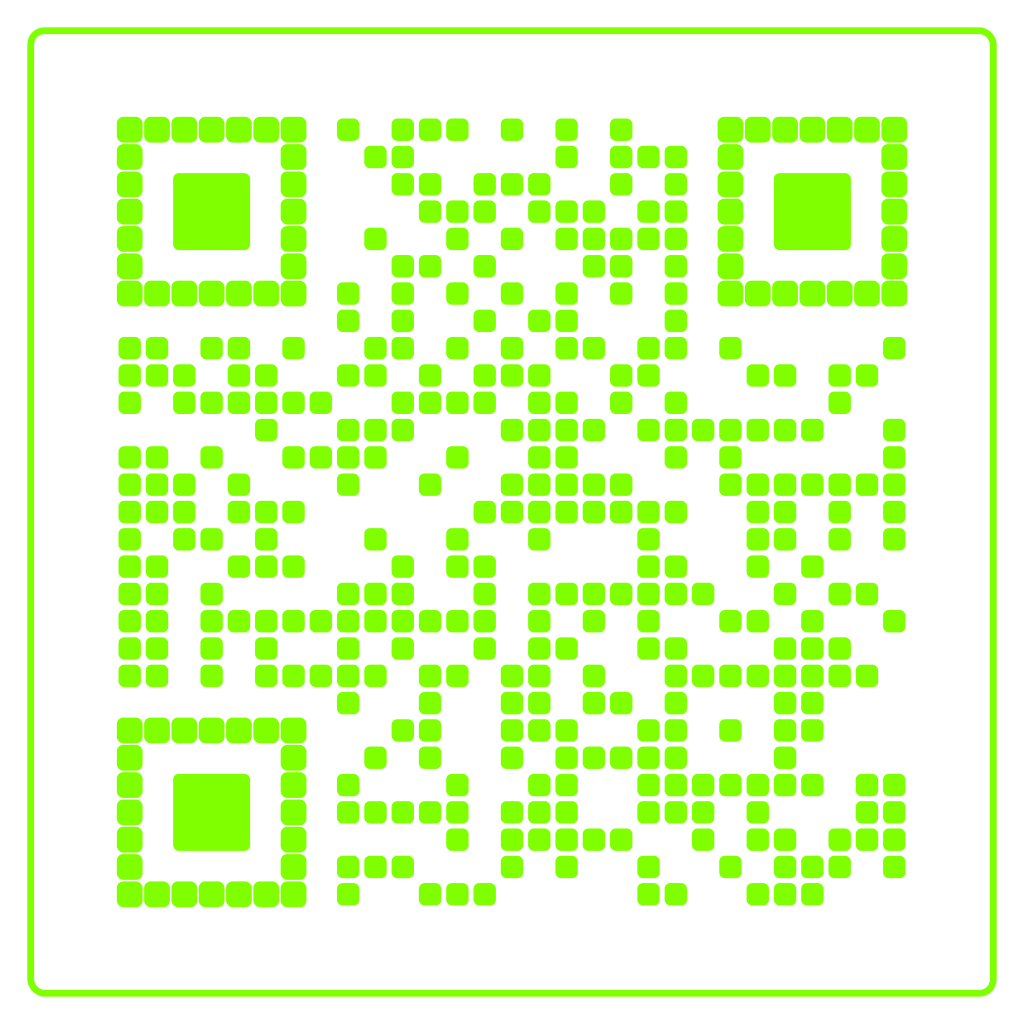
cmdbox
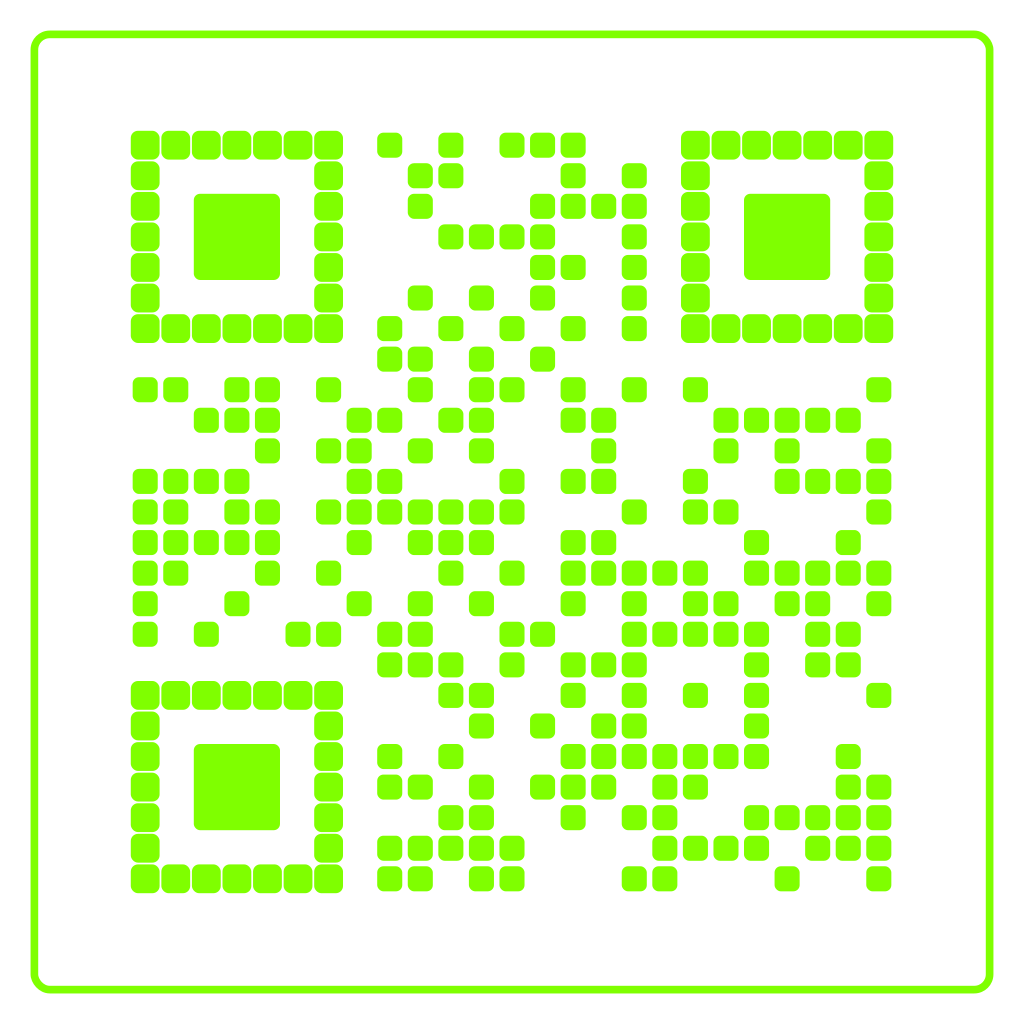
$ open cmdbox.hackenshaw.com